
License & System Updates
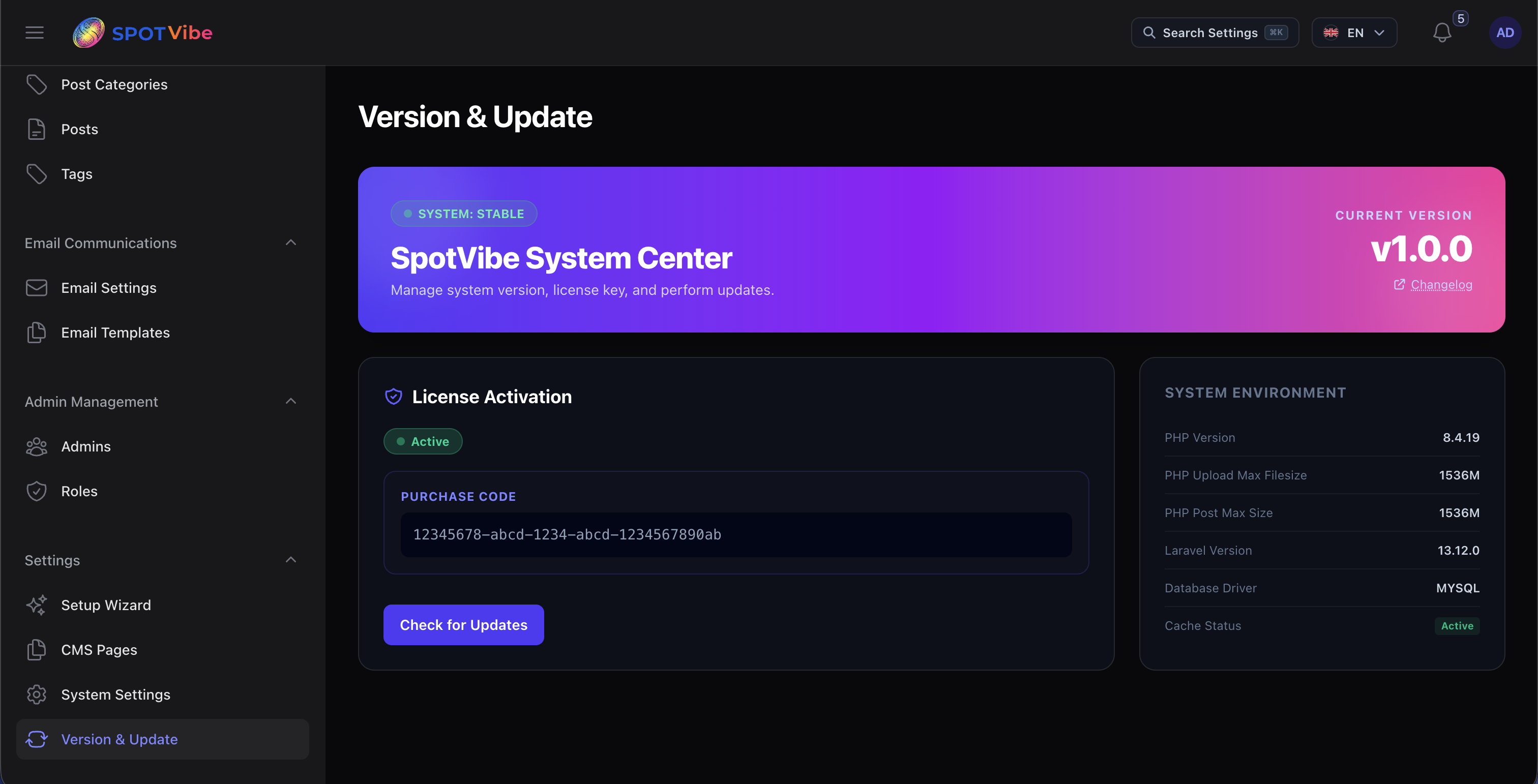
SpotVibe features a built-in Auto-Upgrade system and License Activation Gate. Administrators can verify their Envato purchase code and perform automated system updates directly from the Admin Panel under Settings > Version & Update.
1. Feature Overview
The Auto-Upgrade utility simplifies code updates by allowing administrators to upload the official release ZIP file directly through the web interface, bypassing manual SSH or FTP file transfers.
- Single Source of Truth: The active application version is defined globally in the
root-level
version.jsonfile. - Downgrade Prevention: The system automatically parses the uploaded package version and validates that it is strictly newer than the active installation before allowing the upgrade.
2. Server & Environment Requirements
For the update system to function correctly, ensure your server meets the following requirements:
- PHP Zip Extension: The PHP
ext-zipextension must be active on your server to allow extraction of the upgrade package. - Write Permissions: The web server user (e.g.,
www-data) must have recursive write permissions to the entire project directory. - Disk Space: A minimum of 200MB of free disk space is recommended to store the temporary zip upload and extraction folders.
- Envato Purchase Code: An active and verified license is strictly required to contact the Central Hub update servers.
php.ini configuration as follows:
upload_max_filesize = 256M
post_max_size = 256M
memory_limit = 512M
3. License Activation (Verify Purchase Code)
To unlock system updates, administrators must activate the system with a valid Envato Purchase Code. If you bypass the installation wizard during setup, you can verify your purchase code directly from this page:
- Retrieve your Envato Purchase Code from the Envato Downloads page.
- Navigate to **Admin Panel > Settings > Version & Update**.
- Under the License Activation card, input your purchase code (e.g.,
84869c9b-6484-4861-b924-d9bc5740be84). - Click the green Verify License button.
4. Automated System Upgrade Steps
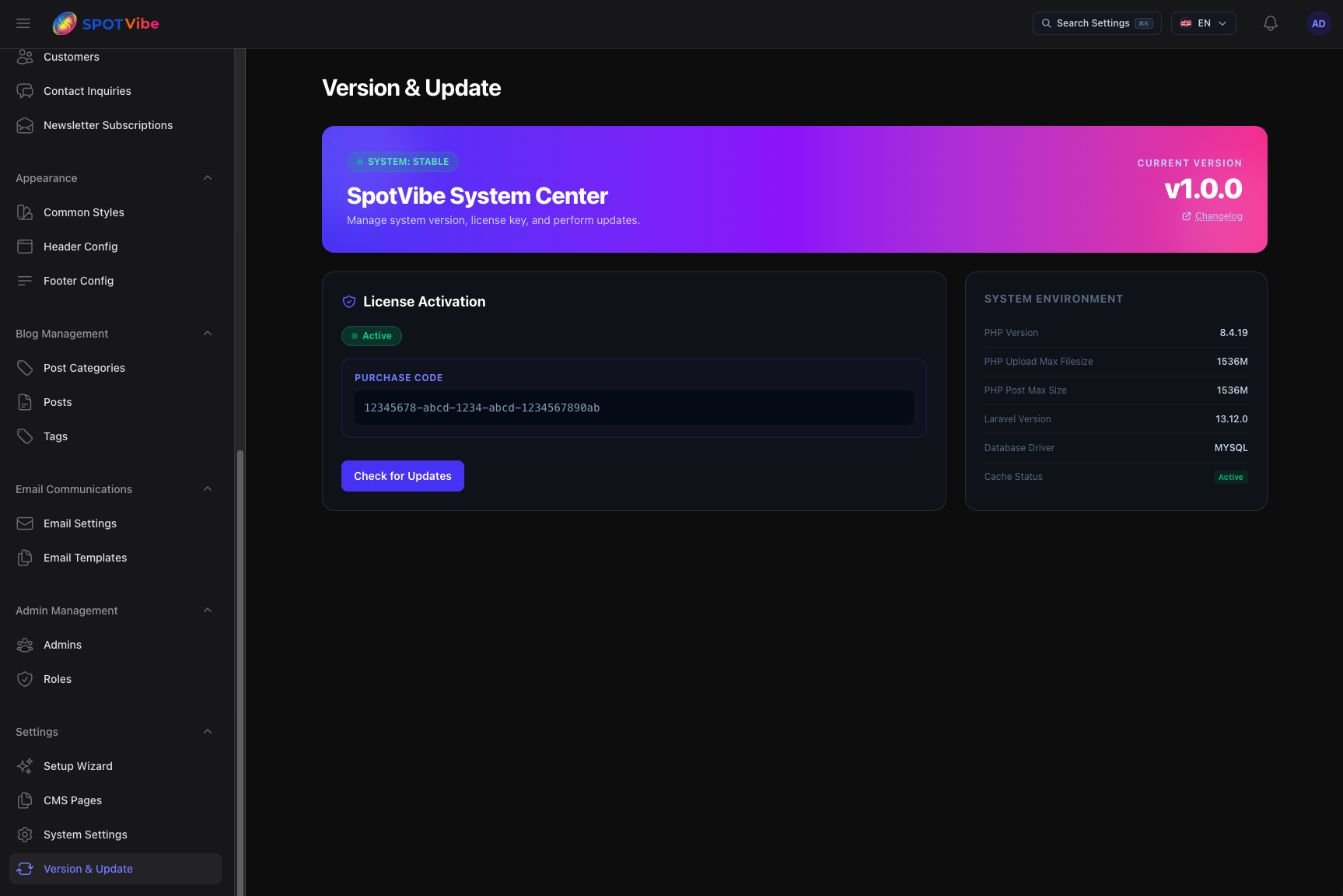
Perform updates in a few simple steps directly within the panel:
- Backup Database: Make a complete database backup via cPanel, phpMyAdmin, or your preferred tool. Always backup database data before upgrading!
- Download Package: Download the latest SpotVibe release package ZIP (named like
SpotVibe-v1.1.0.zip) from your Envato Downloads page. - Upload Package: Drag and drop the entire downloaded ZIP file directly into the
upload zone on the **Version & Update** page. Do not unzip the file locally.
The system is designed to automatically process the Envato zip package, locate the internal
Source_Code/folder, and extract only the necessary code files to execute the upgrade. - Confirm Backup: Check the confirmation box acknowledging you have backed up the database.
- Start Upgrade: Click the Start Upgrade button. The system will
automatically execute the following steps in the background:
- Put the application into Maintenance Mode.
- Locate and extract the update contents from the internal
Source_Code/directory. - Overwrite the core codebase files safely.
- Execute database migrations (
php artisan migrate). - Clear system caches (config, routes, views, app cache).
- Take the application out of Maintenance Mode.
- Clean up temporary ZIP and extraction files.
5. File Overwrites & Preservations (File Mapping)
The update system is designed to overwrite only core system files while completely preserving your custom configurations, database files, and uploaded user assets:
| Overwritten & Replaced (Core Files) | Preserved & Untouched (User Data) |
|---|---|
app/ — Controllers, models, service components |
.env — System environment configurations |
config/ — Global configuration maps |
database/database.sqlite — Local SQLite database (if used) |
resources/ — Global views, assets, and design layouts |
storage/ — User uploads, invoices, avatars, and log files |
routes/ — Route definitions |
public/storage — Physical directory containing your media uploads |
database/migrations/ — Schema migration files |
|
public/ — Compiled system CSS/JS assets |
|
lang/ — Localized translation dictionaries |
|
version.json — Active version identifier file |
6. Troubleshooting & Upgrade FAQs
-
Q: Error: "The uploaded file is not a valid ZIP archive."
A: The zip file was corrupted during download or upload. Download the ZIP file again from Envato Downloads and retry. -
Q: Error: "Could not find Source_Code folder inside the ZIP file."
A: This happens if you did not upload the originalSpotVibe-v{current_version}.zippackage downloaded from Envato. Make sure you upload the main ZIP file as-is without extracting it or modifying its contents. -
Q: Error: "Cannot downgrade. Uploaded version is not newer than current version."
A: The uploaded package has a version number equal to or lower than your current version. Check the version details inside the package file. -
Q: My application is stuck in Maintenance Mode after a failed/timeout update.
A: If the update process timed out or was interrupted, the application might remain offline. To bring it back online, log into your server via FTP or hosting control panel, navigate to thestorage/framework/directory, and delete the file nameddown. -
Q: Error: "File permissions error" or "Unable to replace file."
A: The web server does not have permission to overwrite existing files. Ensure your directory permissions are set to755and file permissions are644, and verify that the files are owned by the web server user (e.g.,www-data). -
Q: The upload fails with a red warning or "The zipFile failed to upload."
A: The ZIP size exceeds your server's PHP upload limit. Increase theupload_max_filesizeandpost_max_sizelimits to at least 100M (or 256M) in your PHP configuration.