Customer Guide
This section guides customers through discovering venues, making reservations, completing payments, and managing their booked slots on the frontend portal.
1. Discovering Venues & Courts
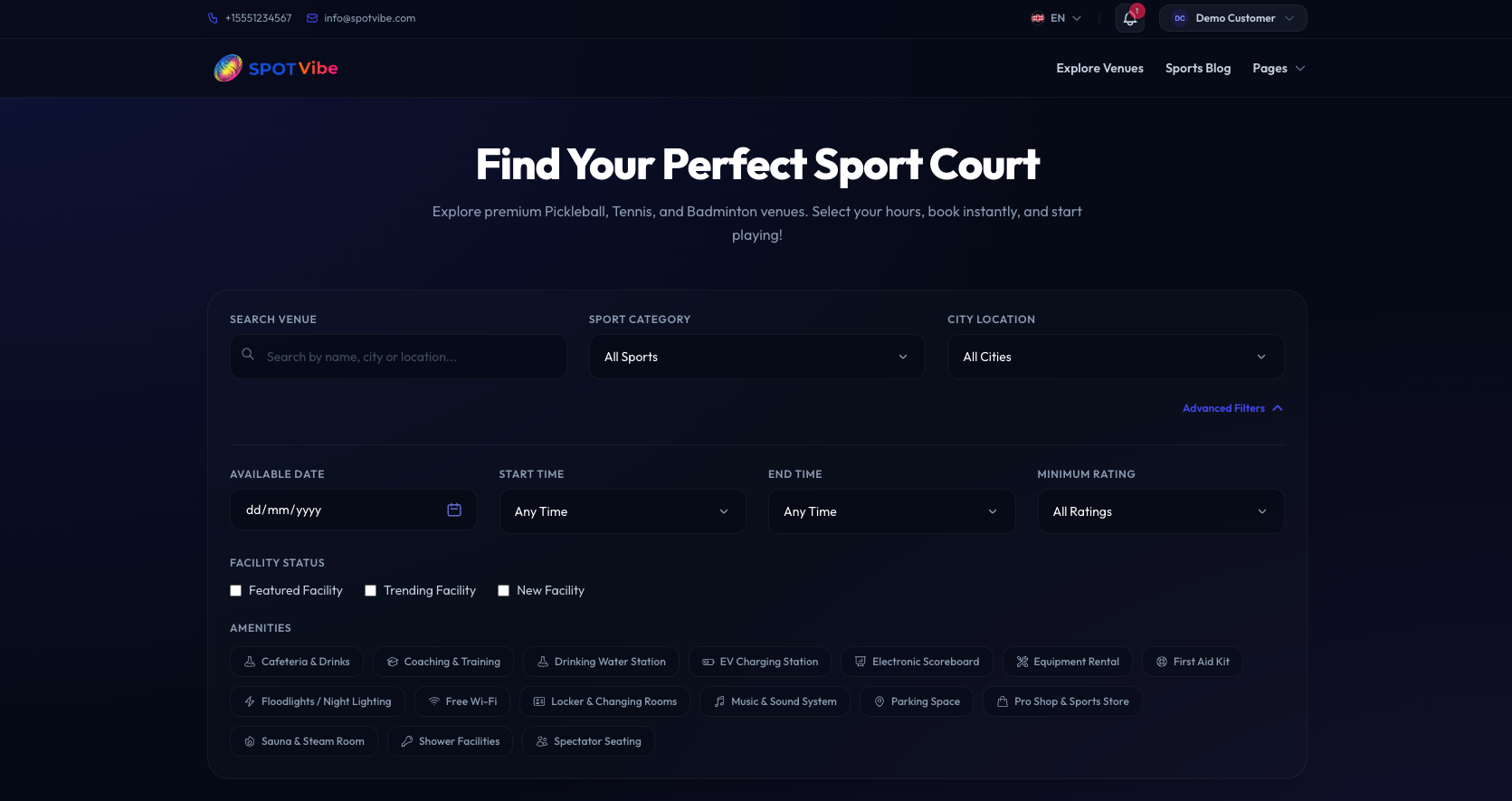
When customers visit the home page (VenueList), they can search and filter the available
sports complexes:
- Sports Category Filters: Narrow down venues based on specific sports (e.g. Football, Basketball, Tennis).
- Amenity Filters: Filter venues by their amenities such as Parking, Shower, or Wi-Fi.
2. Selecting Slots & Booking Wizard
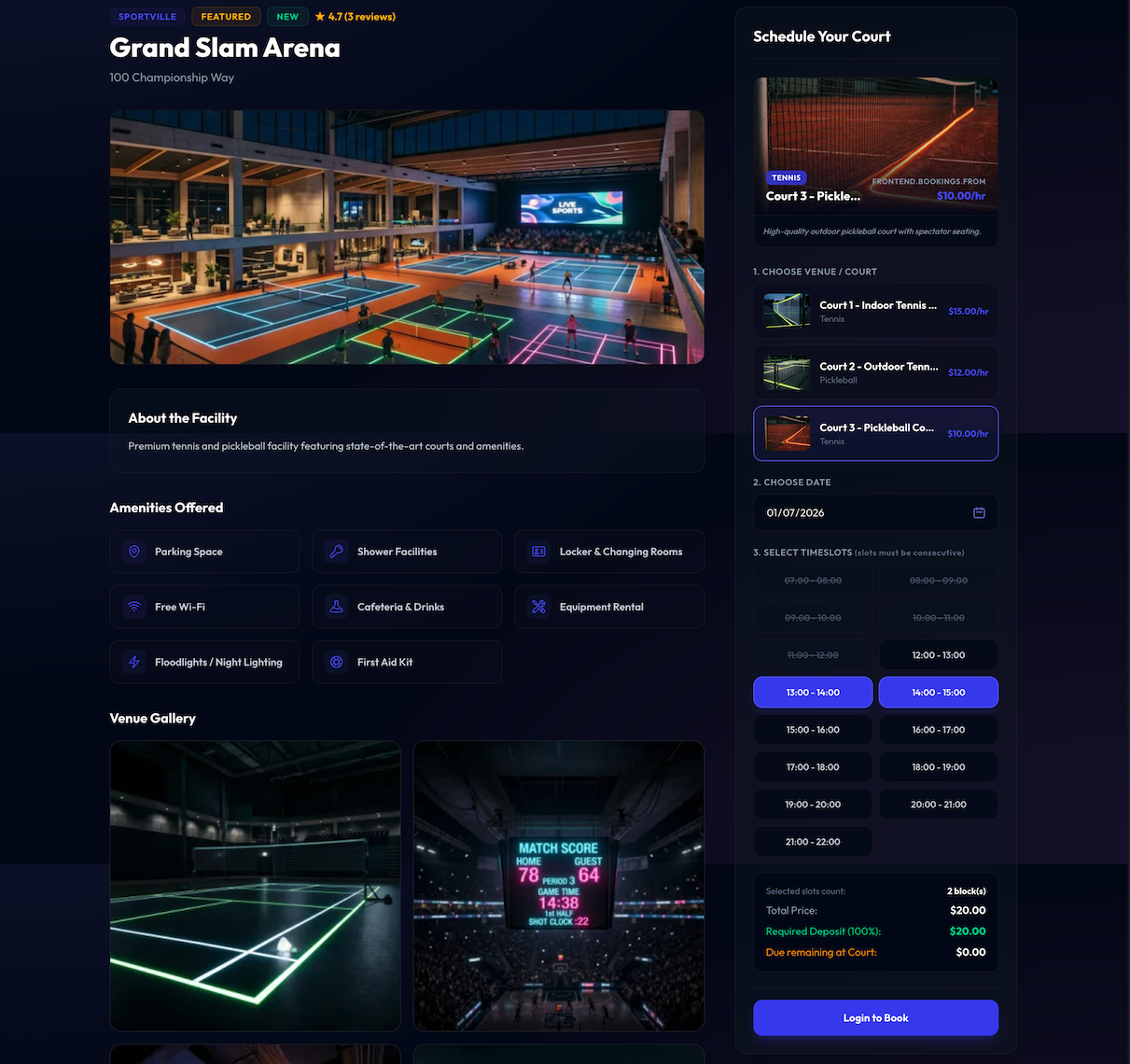
Upon choosing a venue, the customer accesses the detailed venue page (VenueDetail):
- Selecting a Court: View available courts inside the venue, their descriptions, amenities, and photos.
- Interactive Date Picker: Select the booking date. The interface displays hourly slot grids dynamically depending on availability.
- Selecting Time Slots: Customers click on the desired hourly slots to reserve them. The system updates the cart summary and validates conflicts in real-time.
3. Secure Checkout & Payments
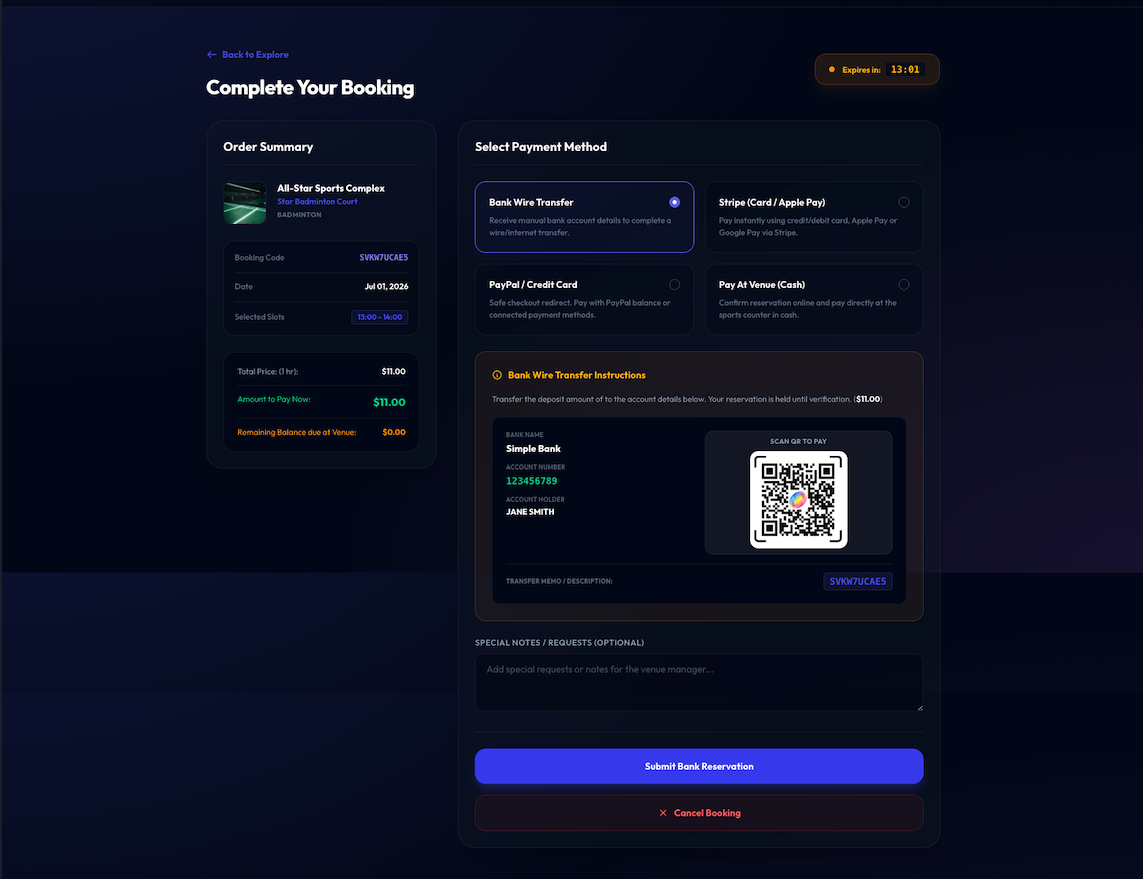
After selecting court slots, clicking the booking button redirects the user to the checkout sequence
(checkout):
- Customer Details: Confirms reservation details, contacts, and order breakdown.
- Payment Gateways: Select between active online methods (Stripe, PayPal) or Offline Cash payment (if enabled by administrative configurations).
- Reservation Lock: The system locks selected slots in memory to prevent other users from checking out the same slots simultaneously.
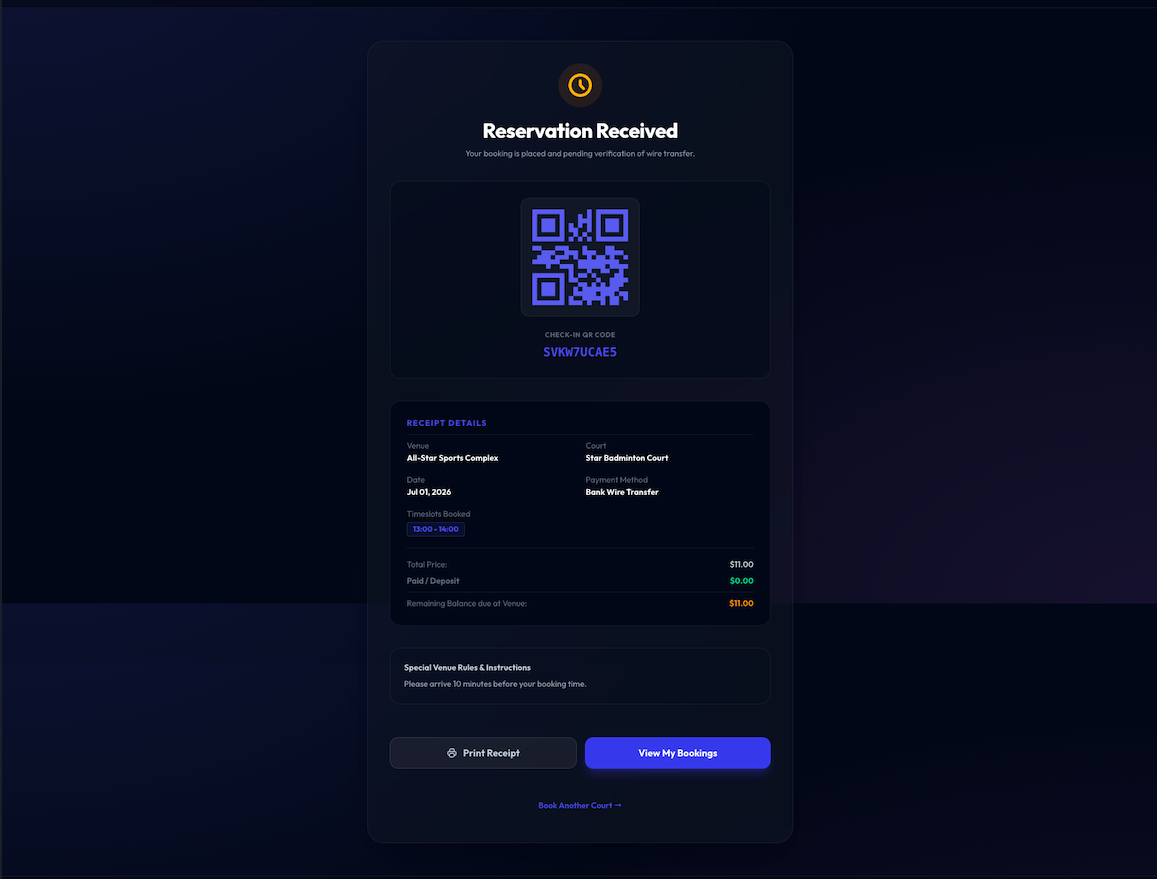
- Booking Confirmation: Once payment succeeds, the system automatically sends booking details and generates an invoice screen with a unique QR Code.
4. Managing Bookings & Customer Portal
Customers can manage their personal profiles, preferences, and bookings by logging in and navigating to
/account:
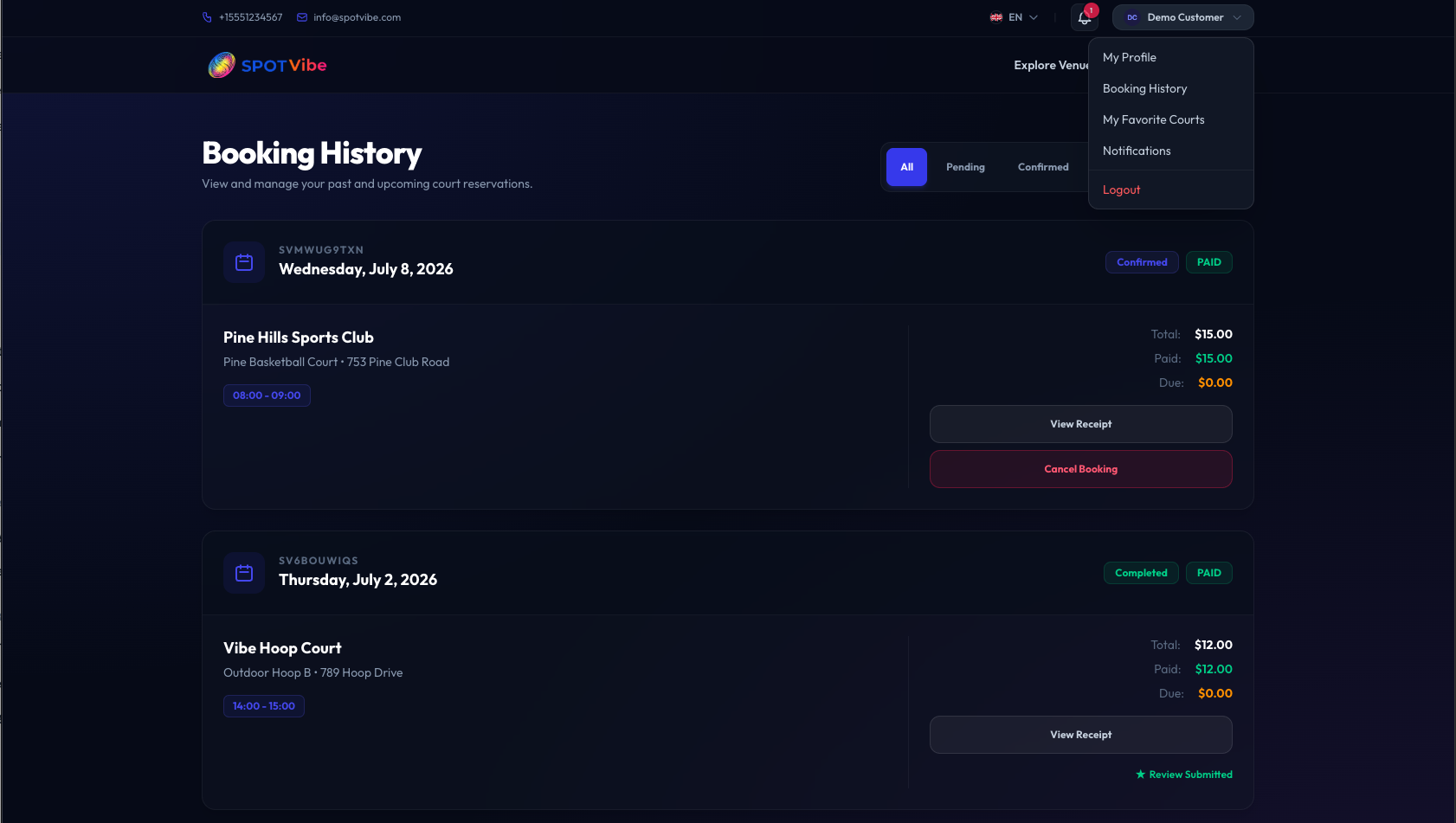
- Booking History (
account.bookings): Displays active, pending, or cancelled slots. Users can download invoice receipts. - Check-in QR Codes: Each confirmed booking has a unique validation QR Code. Customers present this code at the venue for instant staff check-in.
- Favorites & Reviews: Save favorite courts for recurring booking shortcuts, and submit reviews/ratings for courts after completing a match.