Payment Gateways Configuration
SpotVibe comes integrated with Stripe and PayPal for online payments, alongside manual Bank Transfer setups.
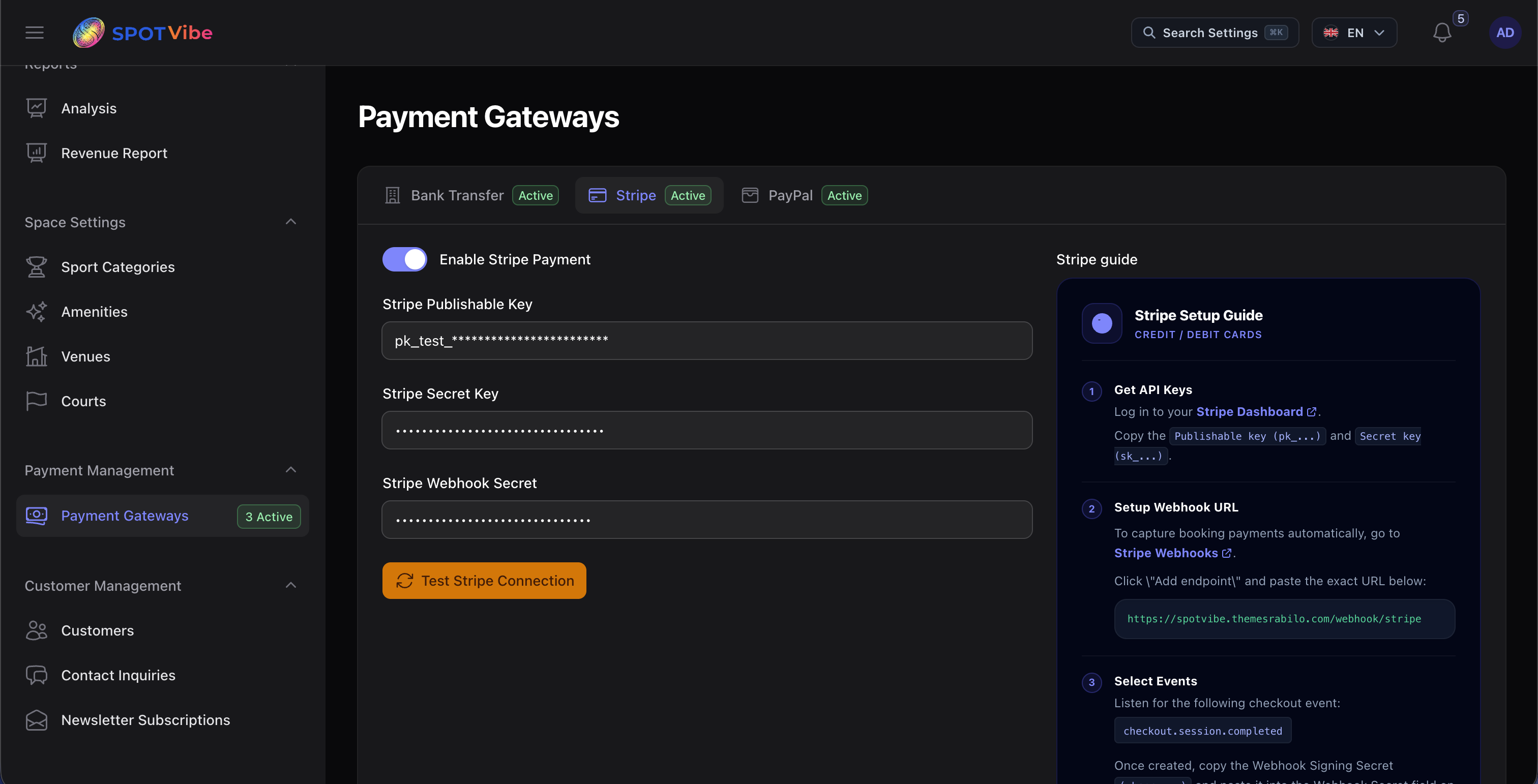
1. Stripe Payment Integration
To enable credit card checkouts via Stripe, follow these steps:
- Step 1: Retrieve API Keys: Log in to your Stripe Dashboard, navigate to Developers > API keys, and copy your Publishable key and Secret key.
- Step 2: Input Keys in Admin Panel: Go to the SpotVibe Admin Panel, navigate to Settings > Payments, toggle Enable Stripe, and paste the keys in their respective fields.
- Step 3: Setup Webhook Endpoint: Go to Developers > Webhooks on
Stripe, click Add endpoint, and input the webhook URL:
https://yourdomain.com/webhook/stripe - Step 4: Select Webhook Events: Under "Select events to listen to", choose
checkout.session.completed. After saving, copy the generated Signing secret (starts withwhsec_) and paste it into the Stripe Webhook Secret field in the SpotVibe Admin Panel.
⚠️ CRITICAL: Stripe webhooks require a secure server
connection. Your site must have a valid SSL certificate (HTTPS). Webhook events will fail on insecure
HTTP connections, preventing bookings from changing status to confirmed automatically.
2. PayPal Payment Integration
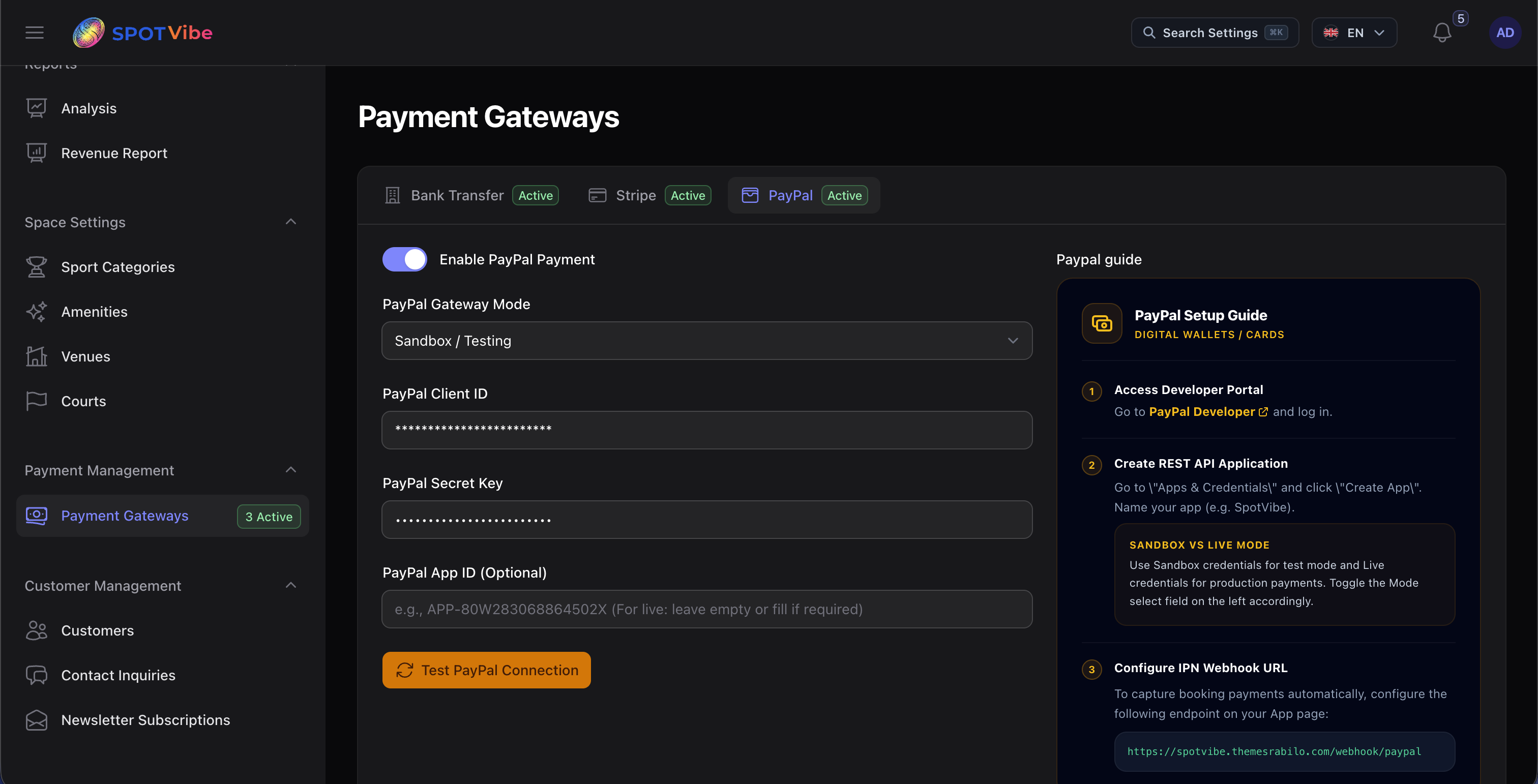
To configure checkout via PayPal REST API, follow these steps:
- Step 1: Obtain App Credentials: Access the PayPal Developer Portal (developer.paypal.com), log in, navigate to **Apps & Credentials**, and click **Create App** under REST APIs. Copy the Client ID and Secret key.
- Step 2: Input Details in Admin Panel: Navigate to SpotVibe Admin Panel Settings > Payments, and toggle Enable PayPal.
- Step 3: Configure Mode: Choose either
sandbox(for test transactions) orlive(for real transactions), and paste your Client ID, Secret, and App ID. - Step 4: Register Webhook: In your PayPal Developer App configuration, add a Webhook
endpoint pointing to:
https://yourdomain.com/webhook/paypal
3. Bank Transfer Setup (Offline Payments)
To allow customers to book court slots and manually wire payments:
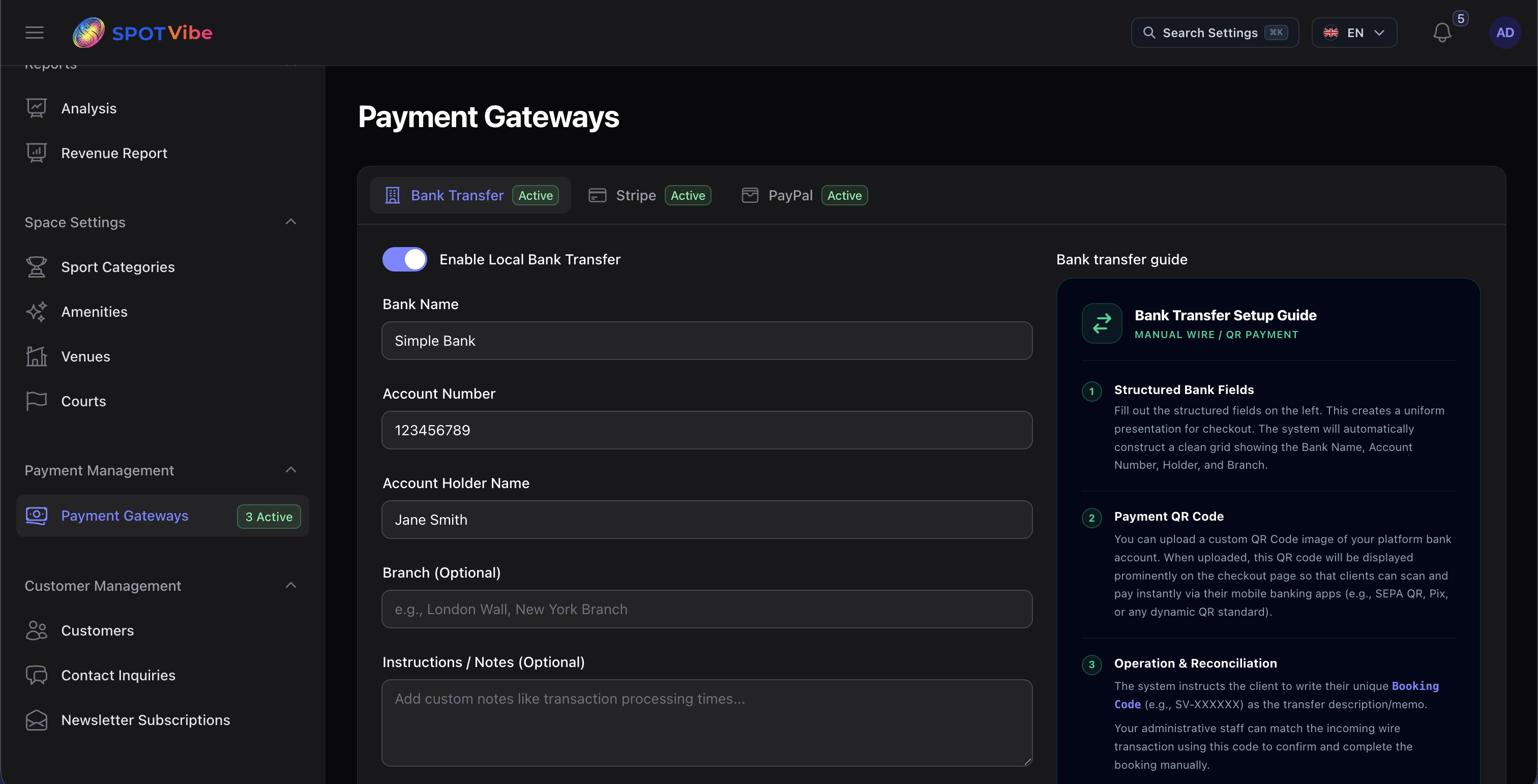
- Step 1: Enable Bank Transfer: Go to SpotVibe Admin Panel Settings > Payments, and toggle Enable Bank Transfer.
- Step 2: Enter Account details: Fill in the Bank Name, Account Holder Name, Account Number, and transfer instructions (e.g., transaction reference template).
- Step 3: QR Code scan: Upload a static scanning QR Code (such as VietQR, PromptPay, or PIX) which will be displayed to the customer during checkout.